First Steps
We will now see how to run a traditional 'Hello World' program in Python. This will teach you how to write, save and run Python programs.
There are two ways of using Python to run your program - using the interactive interpreter prompt or using a source file. We will now see how to use both of these methods.
Using The Interpreter Prompt
Open the terminal in your operating system (as discussed previously in the Installation chapter) and then open the Python prompt by typing python3 and pressing [enter] key.
Once you have started Python, you should see >>> where you can start typing stuff. This is called the Python interpreter prompt.
At the Python interpreter prompt, type:
followed by the [enter] key. You should see the words Hello World printed to the screen.
Here is an example of what you should be seeing, when using a macOS computer. The details about the Python software will differ based on your computer, but the part from the prompt (i.e. from >>> onwards) should be the same regardless of the operating system.
$ python3
Python 3.14.0 (main, Oct  7 2025, 09:12:44)
[Clang 17.0.0 (clang-1700.0.13.3)] on darwin
Type "help", "copyright", "credits" or "license" for more information.
>>> print("Hello World")
Hello World
Notice that Python gives you the output of the line immediately! What you just entered is a single Python statement. We use print to (unsurprisingly) print any value that you supply to it. Here, we are supplying the text Hello World and this is promptly printed to the screen.
How to Quit the Interpreter Prompt
If you are using a GNU/Linux or OS X shell, you can exit the interpreter prompt by pressing [ctrl + d] or entering exit() (note: remember to include the parentheses, ()) followed by the [enter] key.
If you are using the Windows command prompt, press [ctrl + z] followed by the [enter] key.
Choosing An Editor
We cannot type out our program at the interpreter prompt every time we want to run something, so we have to save them in files and can run our programs any number of times.
To create our Python source files, we need an editor software where you can type and save. A good programmer's editor will make your life easier in writing the source files. Hence, the choice of an editor is crucial indeed. You have to choose an editor as you would choose a car you would buy. A good editor will help you write Python programs easily, making your journey more comfortable and helps you reach your destination (achieve your goal) in a much faster and safer way.
One of the very basic requirements is syntax highlighting where all the different parts of your Python program are colorized so that you can see your program and visualize its running.
There are several good options, and any of them will serve you well:
- Visual Studio Code is free, runs on Windows, macOS and Linux, and is probably the most widely used Python editor today. Install the Python extension and you have everything you need.
- PyCharm is a full IDE with strong refactoring and debugging tools. The Community Edition is free.
- JupyterLab is a different sort of tool: you write and run code in small blocks in your browser, seeing the output of each as you go. It suits exploratory and data work particularly well, and it is what we use in many of our courses.
- Vim and Emacs are powerful and popular with experienced programmers, but both take real time to learn. If you want to go deeper on Vim, Swaroop C H has written an entire book on it.
If you are using Windows, do not use Notepad - it is a bad choice because it does not do syntax highlighting and also importantly it does not support indentation of the text which is very important in our case as we will see later. Good editors will automatically do this.
If you are new to programming and have no preference, start with Visual Studio Code or JupyterLab and spend your effort learning Python rather than learning the editor. You can always switch later.
Setting up your editor 
Whichever editor you picked, getting started follows the same three steps:
- Create a folder to keep your Python files in, somewhere you can find again. We suggest a folder called
helloworld. - Create a new file in that folder called
hello.py. The.pyextension matters - it tells your editor, and Python itself, that this is a Python program. - Type your program into the file and save it.
Then run it. How you do that depends on your editor:
- In Visual Studio Code, open the folder, then press the ▷ Run button in the top right, or press
F5. - In PyCharm, right-click the file in the sidebar and choose
Run 'hello'. - In JupyterLab, code goes in cells rather than files; press
Shift+Enterto run the current cell. - From a terminal, in any editor, save the file and then run
python hello.py. This always works, and is shown in detail in the next section.
Each editor's own documentation covers this in more depth: VS Code, PyCharm, JupyterLab.
Using A Source File
Now let's get back to programming. There is a tradition that whenever you learn a new programming language, the first program that you write and run is the 'Hello World' program - all it does is just say 'Hello World' when you run it. As Simon Cozens says, it is the "traditional incantation to the programming gods to help you learn the language better."
Start your choice of editor, open a new file hello.py and type this:
Where should you save the file? Any folder whose location you know, as long as you can find it again. If you don't have one in mind, use the helloworld folder from the previous section:
~/helloworldon macOS and LinuxC:\helloworldon Windows
You can create it in the terminal with the mkdir command, for example mkdir ~/helloworld. Avoid saving your work in a temporary folder such as /tmp, because on most systems its contents are deleted when you restart your computer.
IMPORTANT: Always ensure that you give it the file extension of .py, for example, foo.py.
To run your Python program:
- Open a terminal window (see the previous Installation chapter on how to do that)
- Change directory to where you saved the file, for example,
cd ~/helloworld - Run the program by entering the command
python hello.py. The output is as shown below.
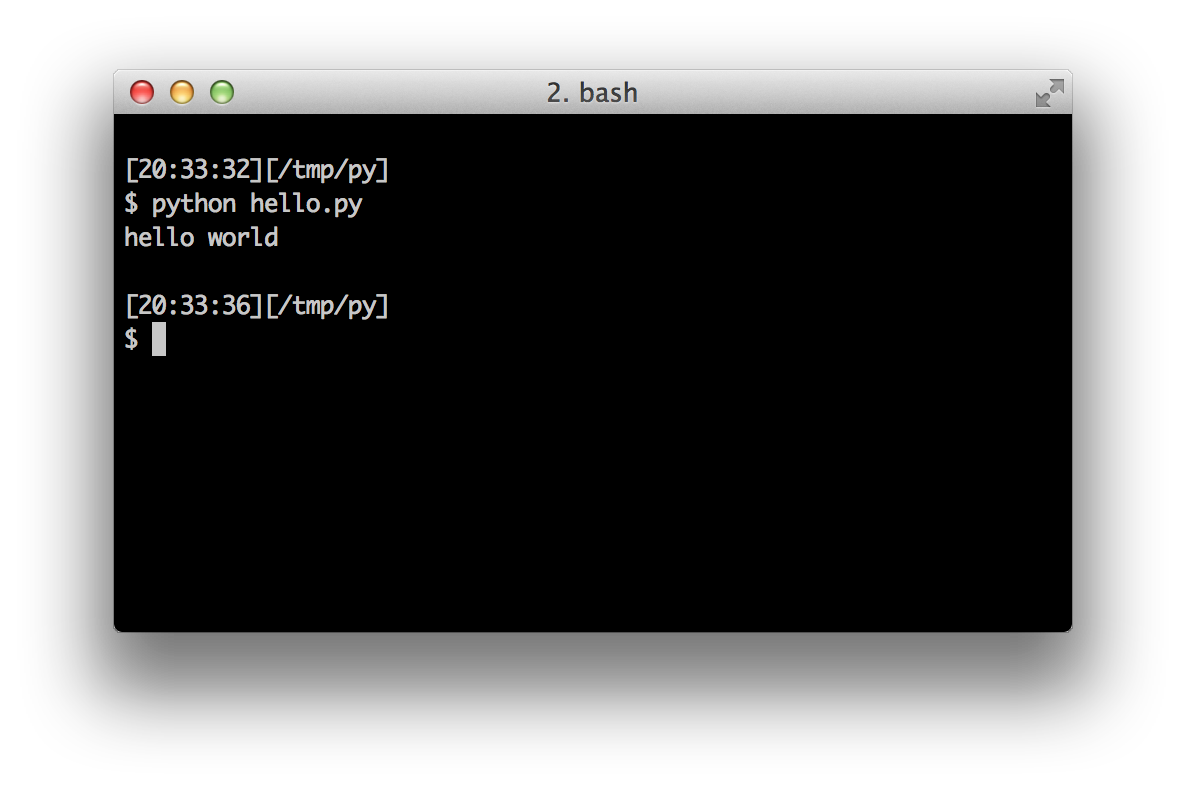
If you got the output as shown above, congratulations! - you have successfully run your first Python program. You have successfully crossed the hardest part of learning programming, which is, getting started with your first program!
In case you got an error, please type the above program exactly as shown above and run the program again. Note that Python is case-sensitive i.e. print is not the same as Print - note the lowercase p in the former and the uppercase P in the latter. Also, ensure there are no spaces or tabs before the first character in each line - we will see why this is important later.
How It Works
A Python program is composed of statements. In our first program, we have only one statement. In this statement, we call the print statement to which we supply the text "hello world".
Getting Help
If you need quick information about any function or statement in Python, then you can use the built-in help functionality. This is very useful especially when using the interpreter prompt. For example, run help('len') - this displays the help for the len function which is used to count number of items.
TIP: Press q to exit the help.
Similarly, you can obtain information about almost anything in Python. Use help() to learn more about using help itself!
In case you need to get help for operators like return, then you need to put those inside quotes such as help('return') so that Python doesn't get confused on what we're trying to do.
Summary
You should now be able to write, save and run Python programs at ease.
Now that you are a Python user, let's learn some more Python concepts.